Skip to main contentWhat is a Workspace?
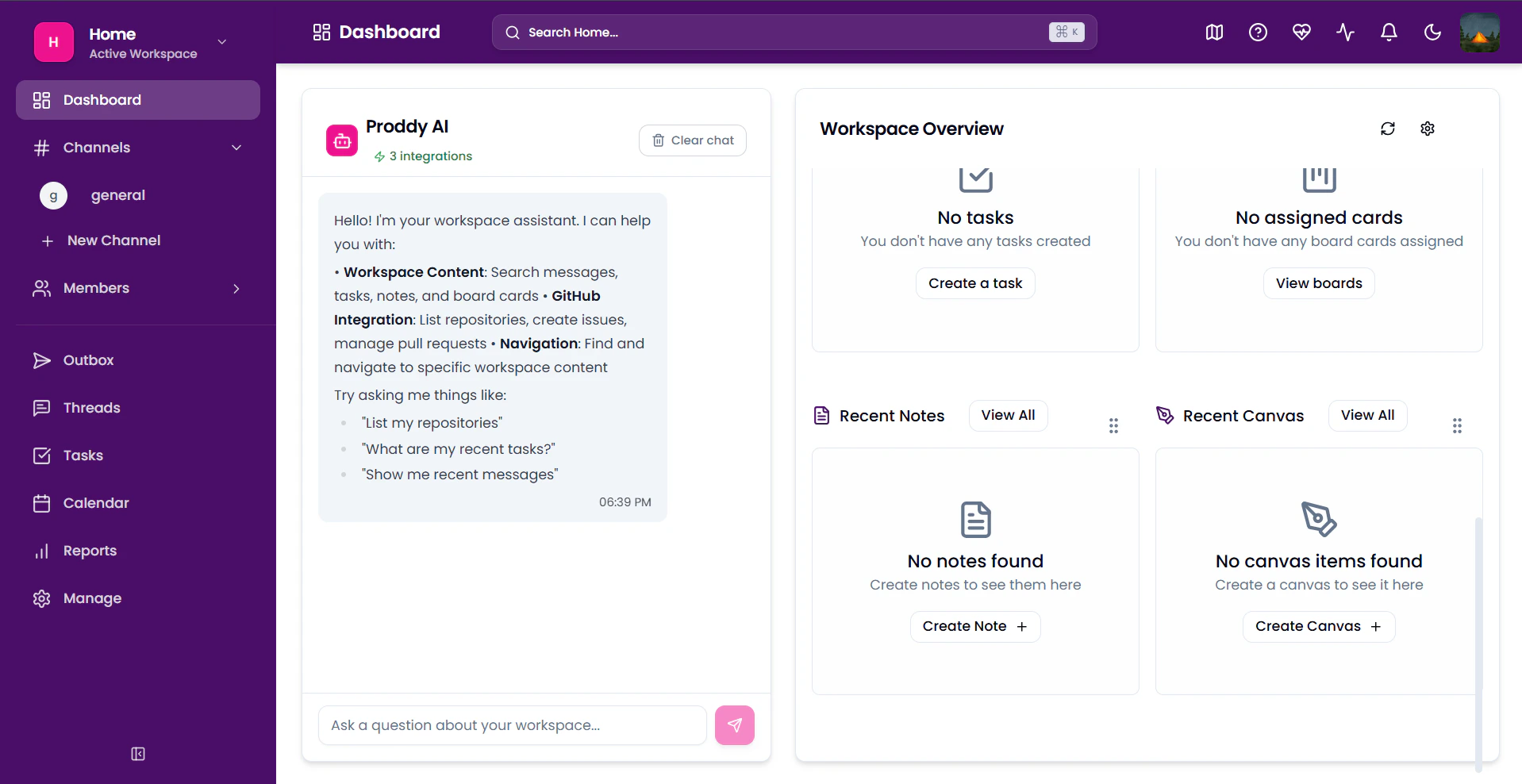
A Workspace is the primary container for your team’s collaboration in Proddy. It houses all your channels, message history, and member directory. It serves as your comprehensive entry point; navigate from here to access settings, switch teams, or launch integrated features.
Creating a Workspace
To create a new workspace:
-
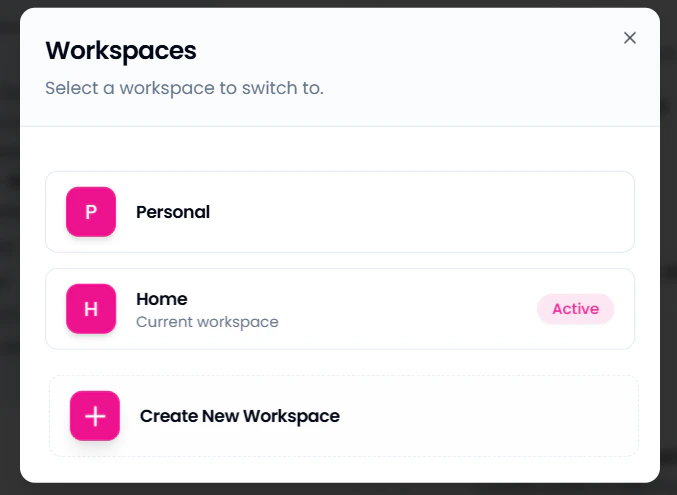
Open the sidebar
-
Click on the current workspace
-
Click Switch Workspace
-
Select Create Workspace
-
Enter new workspace name
-
Click Create
Joining a Workspace
You can join an already existing workspace. For this, ask your team member to share a link and a code for the workspace. To learn more about sharing a workspace, click here.
Then,
- Sign in to Proddy AI
- Paste the link in your web browser.
- Enter the 6-digit alphanumeric code shared with you.
- You should now be able to access the shared workspace.
Renaming a Workspace
To rename a template
- Open the sidebar
- Open Manage [https://www.proddy.tech/workspace/workspaceId/manage]
- Under Workspaces find the Workspaces Settings
- Type in your new workspace name in Workspace Settings section
- Click Save
Deleting a Workspace
- Open the sidebar
- Open Manage [https://www.proddy.tech/workspace/workspaceId/manage]
- Under Workspaces find the Workspaces Settings
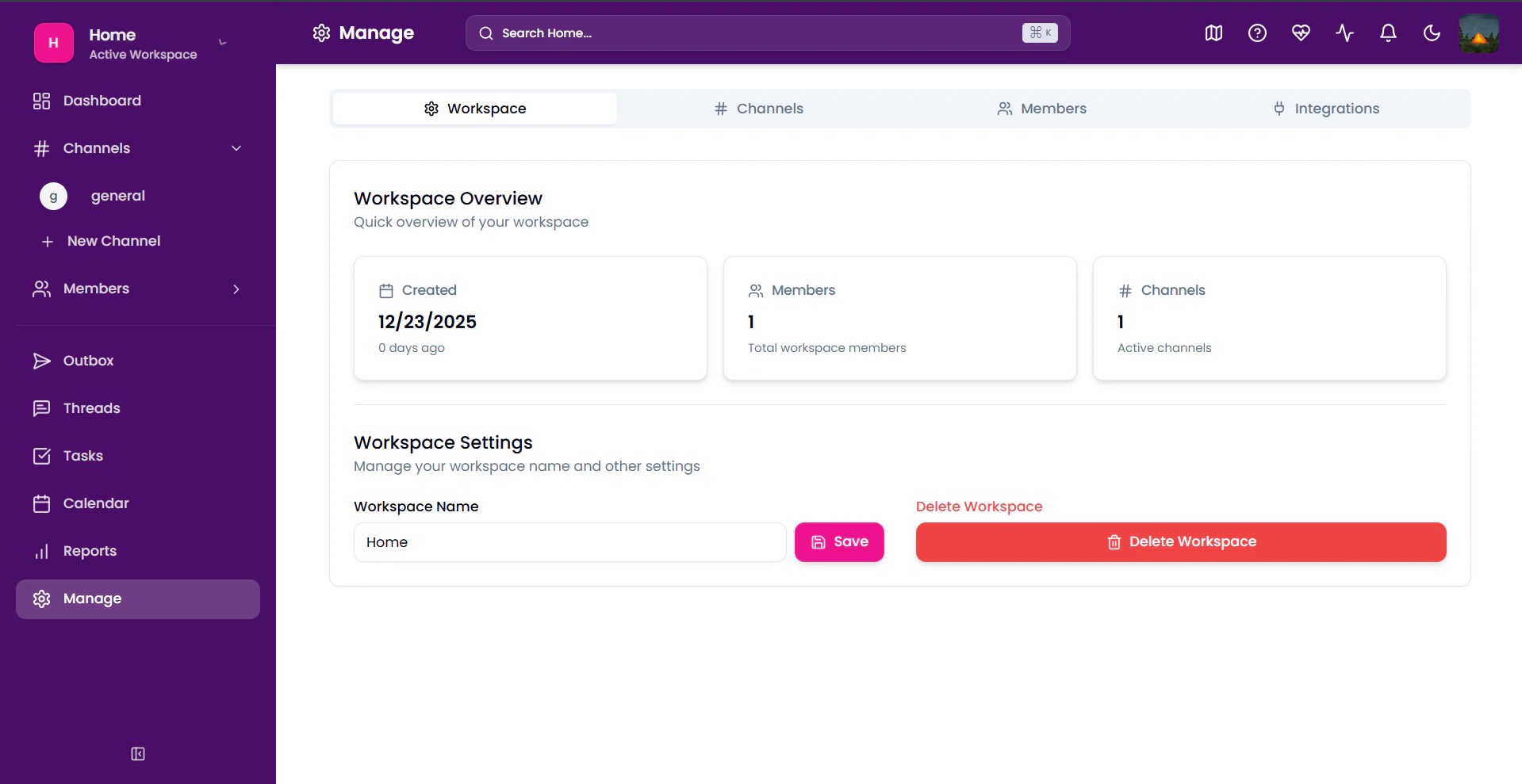
- Click on Delete Workspace
- Confirm your decision and click Delete
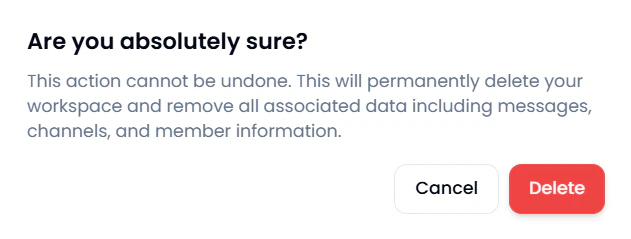 Caution: This move is not reversible; please discuss it with your team before deleting.
Switching between Workspaces
If you are a member of multiple workspaces, you can switch between workspaces, reducing the hassle time to switch between apps. For this
Caution: This move is not reversible; please discuss it with your team before deleting.
Switching between Workspaces
If you are a member of multiple workspaces, you can switch between workspaces, reducing the hassle time to switch between apps. For this
- Open the sidebar
- Click on the current workspace
- Click Switch Workspace
- Either switch to an already existing workspace or create a new workspace
Working with a Workspace
Your workspace is where you collaborate with your teammates to enhance your workflow. Think of it as your digital office. The dashboard of your workspace gives you a glimpse of everything that has happened and gives you an overview when you log in. This is where the magic starts.
Proddy AI
Proddy AI is your personal assistant to help you through your workflow. You can interact with it and ask for any doubts regarding the workspace.
To access it:
- Open the sidebar.
- Click on Proddy AI.
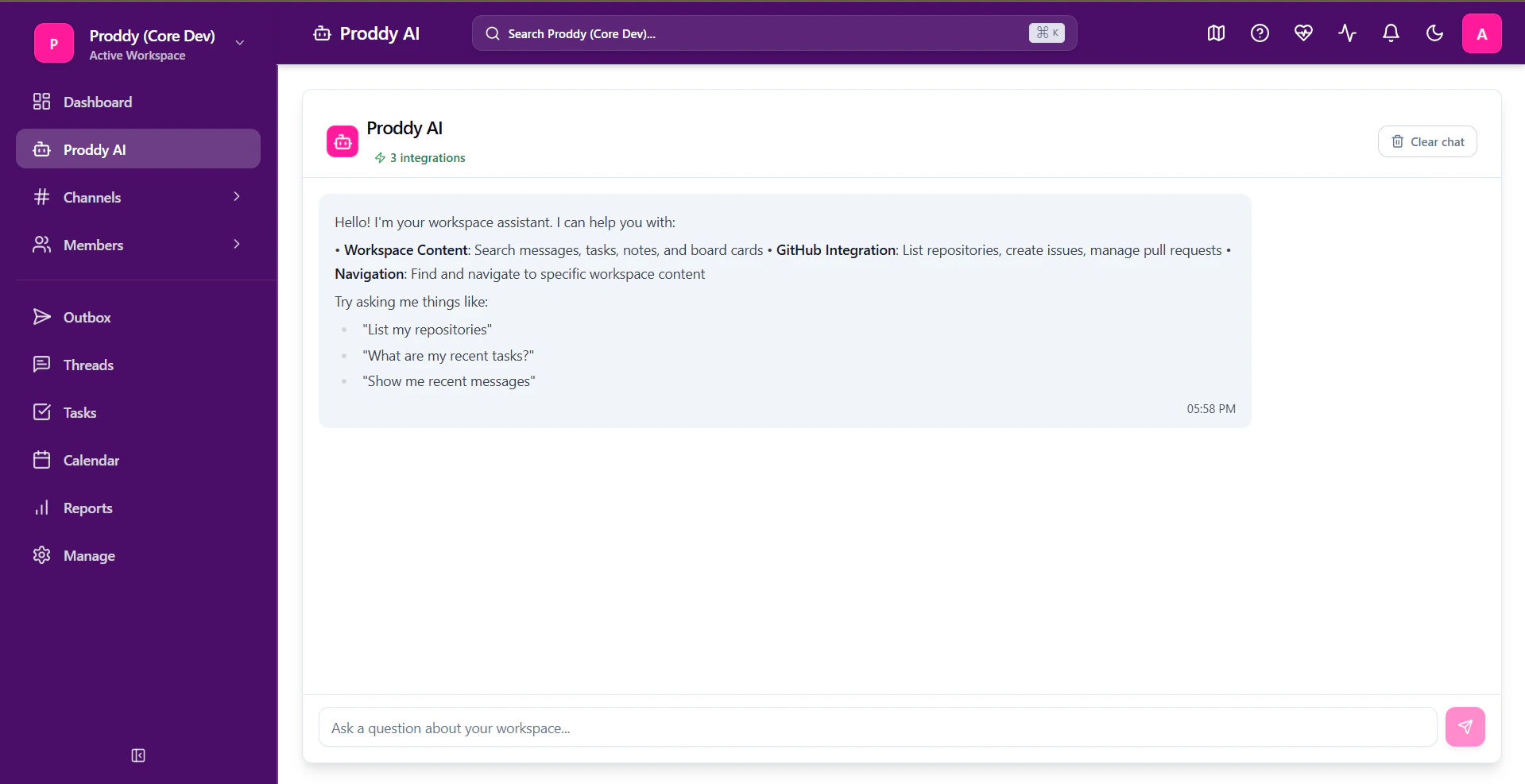 Go ahead and type in “What are some tasks assigned to me?” to start off a conversation.
For more info on our Proddy AI, refer to the link below:
To know how we use your data, please refer to our Privacy Policy and Terms and Conditions.
Workspace Overview
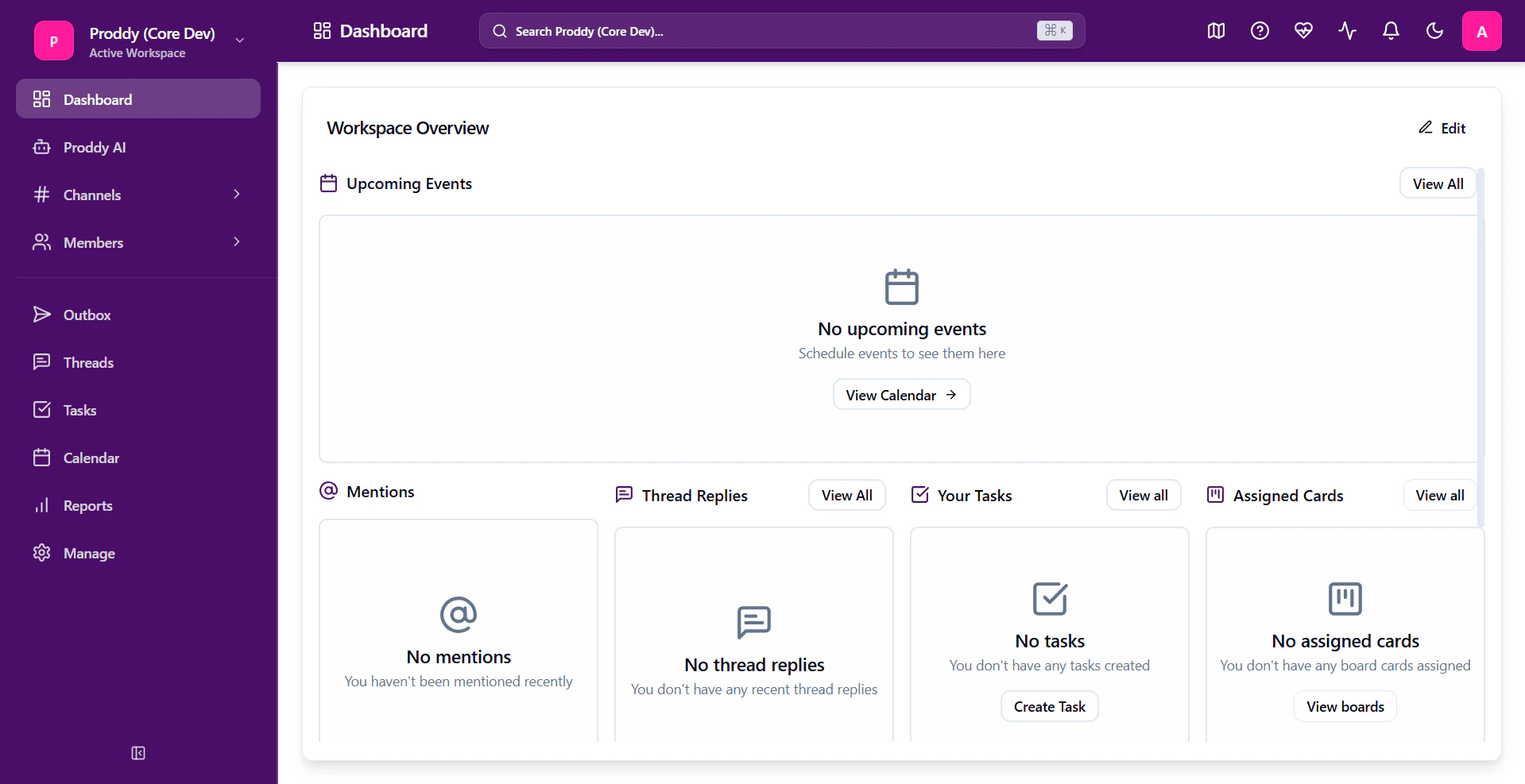
This pane gives you a summary of your workspace. It shows any scheduled events, chats and mentions, assigned tasks, notes and much more.
Feel free to explore any of the features. If you feel stuck, please refer to the links below.
Go ahead and type in “What are some tasks assigned to me?” to start off a conversation.
For more info on our Proddy AI, refer to the link below:
To know how we use your data, please refer to our Privacy Policy and Terms and Conditions.
Workspace Overview
This pane gives you a summary of your workspace. It shows any scheduled events, chats and mentions, assigned tasks, notes and much more.
Feel free to explore any of the features. If you feel stuck, please refer to the links below.
- Calendar
- Notes
- Canvas
- Tasks
- Threads
- Boards
Notifications
You can find all your notifications from your workspaces gathered in one place. These might be from your general channel, DMs or any tasks you have been assigned.
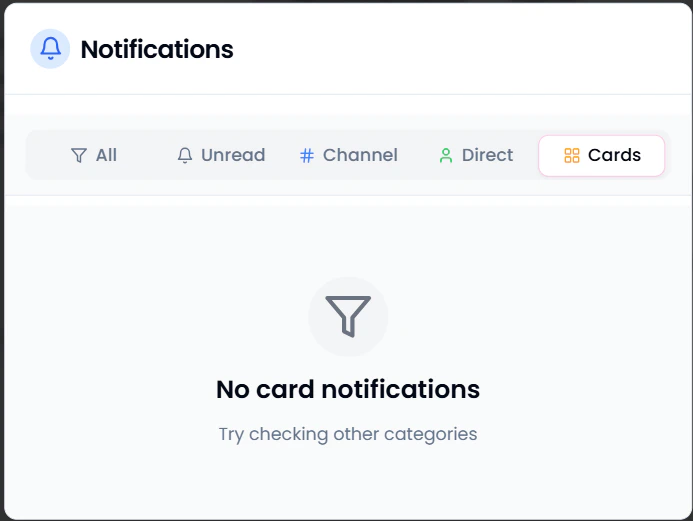 To find your notifications, click on the notifications icon on the top right of the workspace in the navigation bar.
Search Bar
The search bar provides an easy and effective way to search for anything inside your workspace.
To open the search bar either press
Control + K on Windows or
Command + K on Mac
Or click on the search bar on top of the Dashboard.
To find your notifications, click on the notifications icon on the top right of the workspace in the navigation bar.
Search Bar
The search bar provides an easy and effective way to search for anything inside your workspace.
To open the search bar either press
Control + K on Windows or
Command + K on Mac
Or click on the search bar on top of the Dashboard.

Customising Dashboard
Layout
You can customise your dashboard to look and feel like you want. To move around and customise the dashboard, follow the steps as given below:
To resize views:
-
Click the Edit option on the top right of the Workspace Overview pane.
-
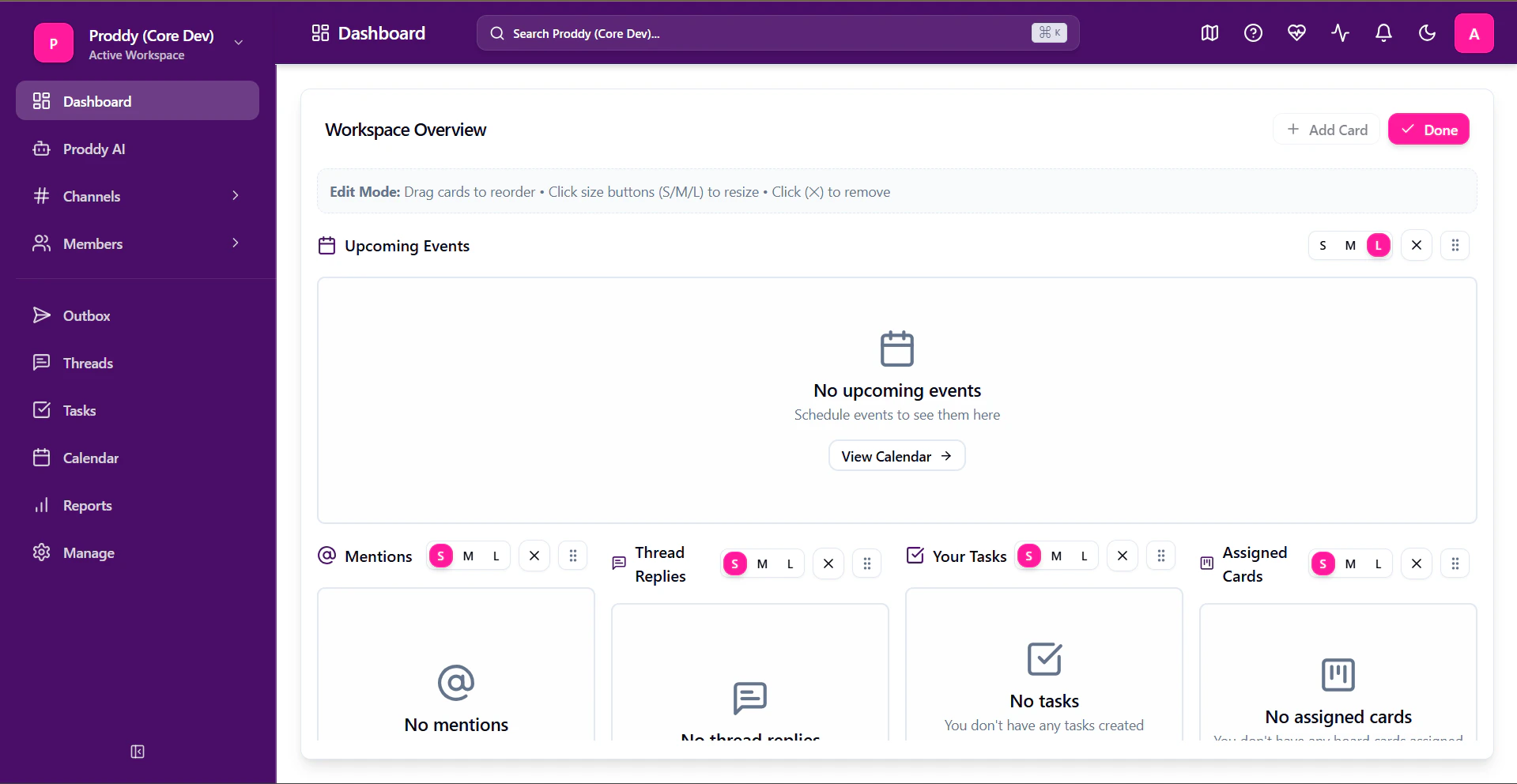
Select the views you would like by adding or removing them.
-
Choose their sizes from the option given.
To change layout:
-
Find the icon in the top right of the card in the edit mode.

-
Hold and drag it to move the card wherever you like it
Dark Mode
To switch between dark and light modes, click on the dark mode icon on the top right of the workspace, in the navigation bar.



