Skip to main contentWhat you’ll see in Outbox
The Outbox displays:
- Messages sent in channels
- Note exports (HTML / PDF / JSON / Markdown)
- Canvas shares
- Calendar-triggered messages
- System-generated activity entries
Each entry shows:
- Source channel (e.g., #general)
- Content preview
- Timestamp (date & time)
Access the Outbox
- Open the Proddy workspace.
- Click Outbox from the left sidebar.
- The Outbox opens showing all sent messages and activities.
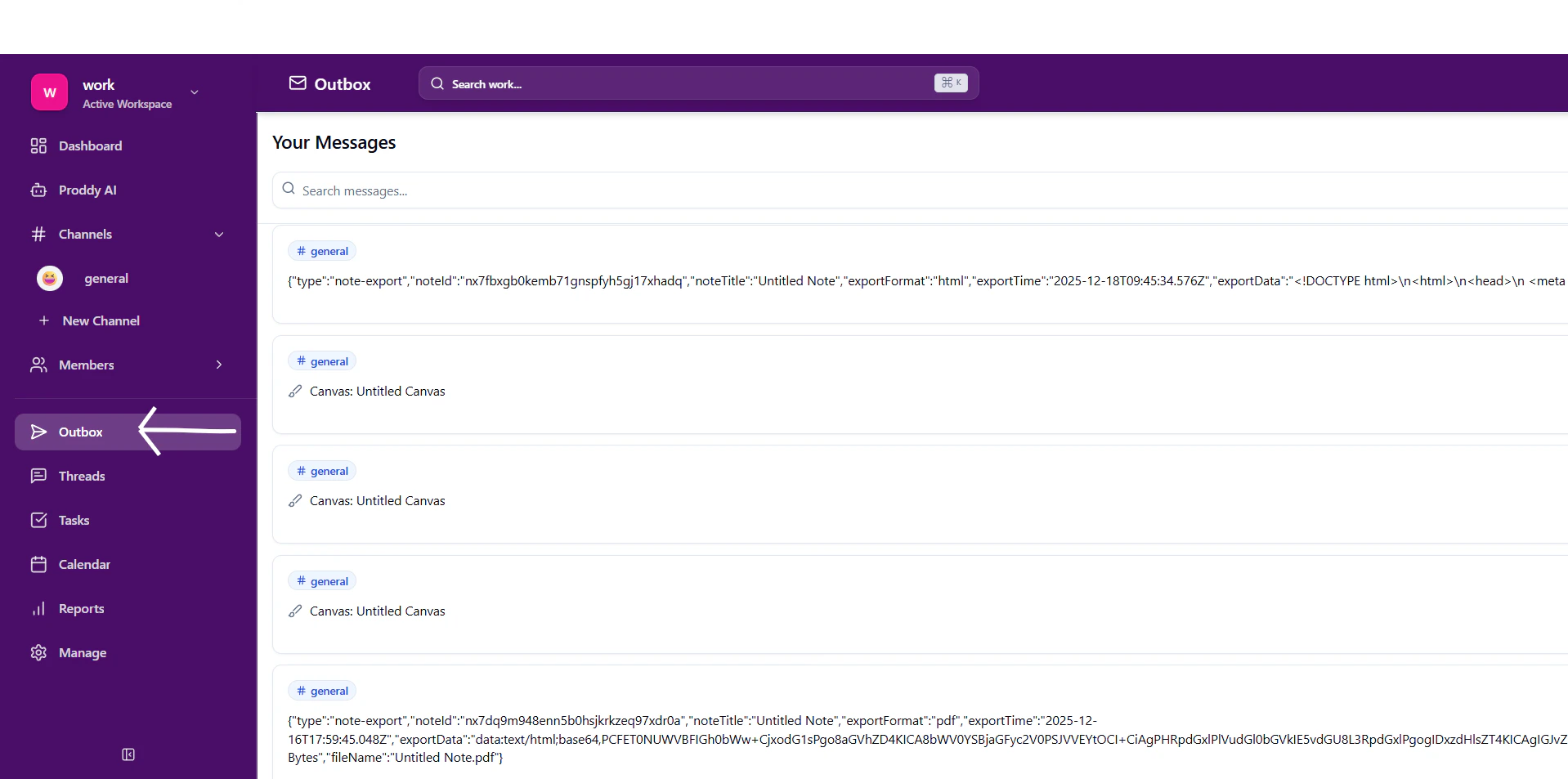
Viewing messages in Outbox
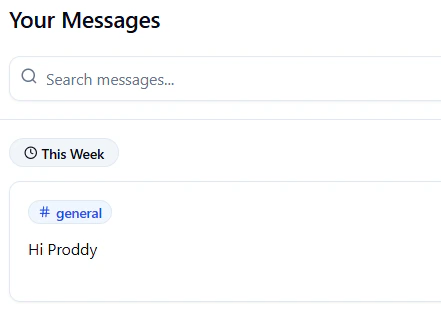
- Messages are grouped by time periods such as:
- Each item displays:
- Channel name
- Message or exported content preview
- Date and time sent
This makes it easy to audit or revisit previously sent information.

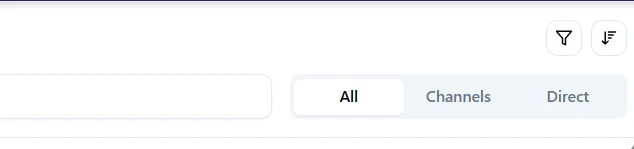
Filtering Outbox Messages
Use the filters at the top to refine what you see:
- All – Shows all sent messages
- Channels – Shows messages sent to channels
- Direct – Shows messages sent via direct messages
This helps you quickly find messages based on where they were sent.
Search messages in Outbox
- Use the Search messages… bar at the top.
- Enter keywords related to:
- Message content
- Channel name
- Export type
The list updates in real time to show matching entries.
 When you export a note or document:
- An entry is automatically created in the Outbox
- The export metadata (format, file name) is logged
- Large exports may show encoded or raw content previews
This helps users confirm exports were triggered successfully.

Why Outbox is useful
- Central history of sent content
- Easy debugging for exports and automations
- Transparency across chats, notes, canvas, and calendar
- Helpful for audits and collaboration tracking

