

What you’ll need
- Access to a Proddy workspace
- Permission to create and manage tasks
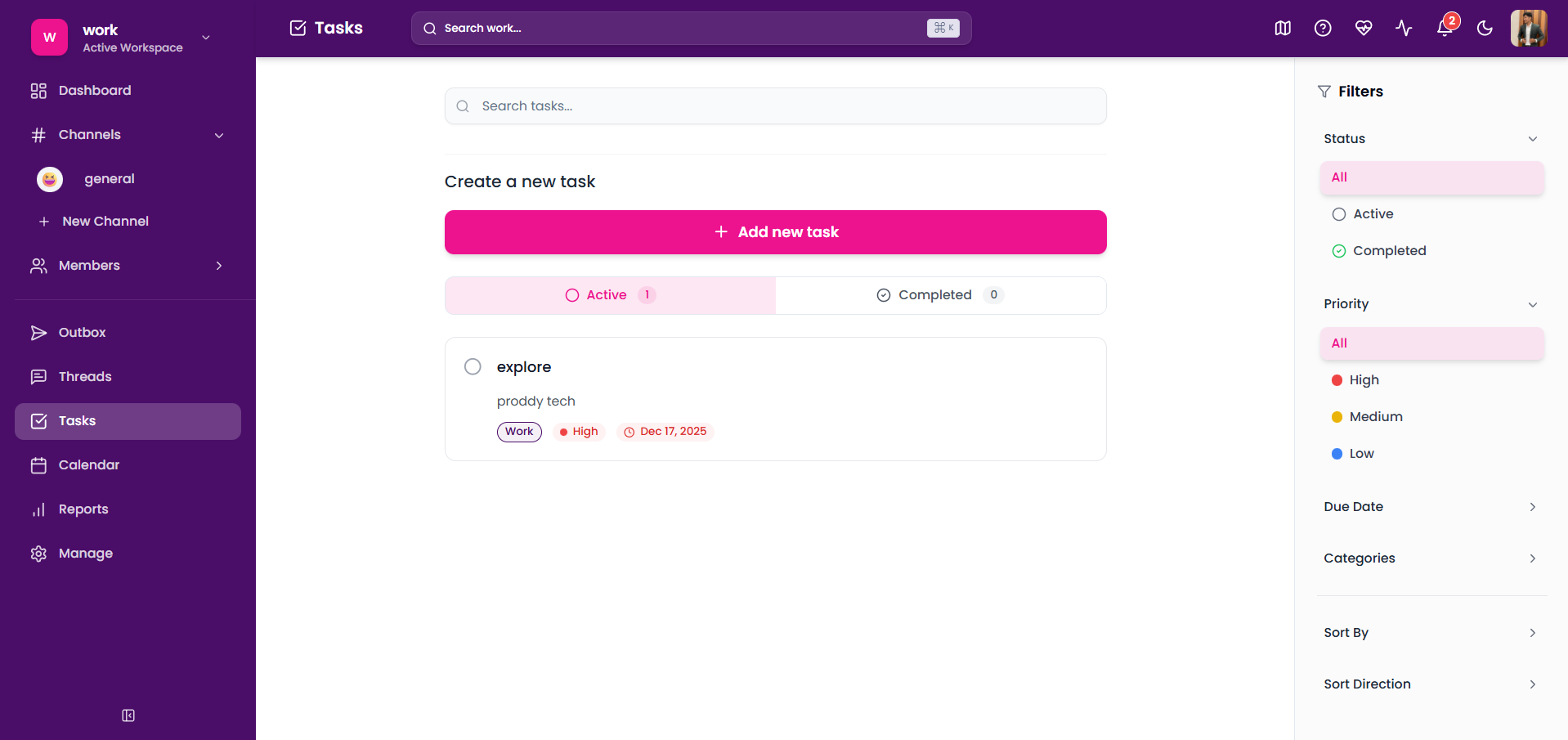
Where to find Tasks
- Open your Proddy workspace.
- Click on Tasks from the left sidebar.
How to create a task
- Open Tasks from the left sidebar.
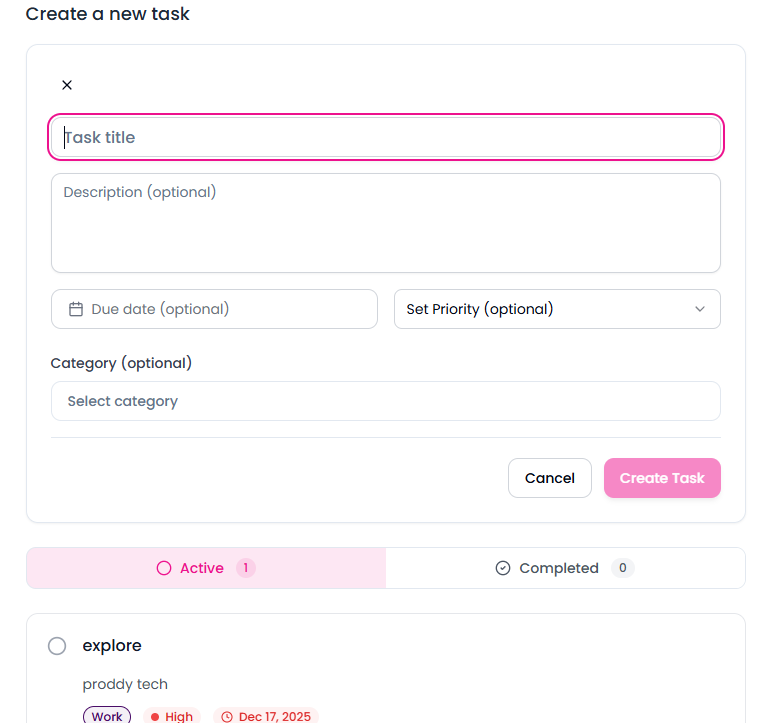
- Click Add new task.
- Enter the task title.
- (Optional) Add description, due date, priority, and category.
- Click Create Task to save.
What happens after creating a task
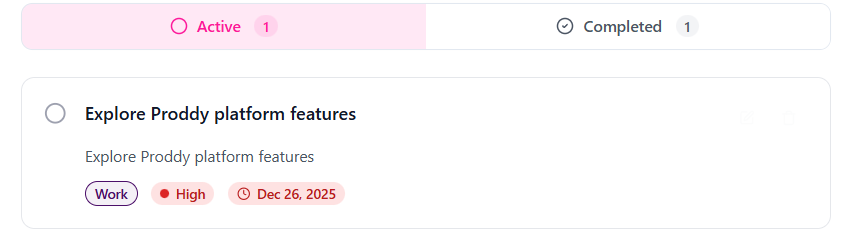
- The task appears under the Active tab.
- Tasks can later be marked as completed.
Viewing task status
Tasks are automatically grouped into:- Active
- Completed
Managing tasks
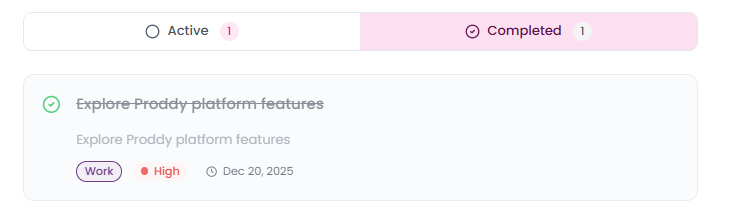
Mark a task as completed- Navigate to the Tasks page.
- Click the checkbox on the left side of a task.
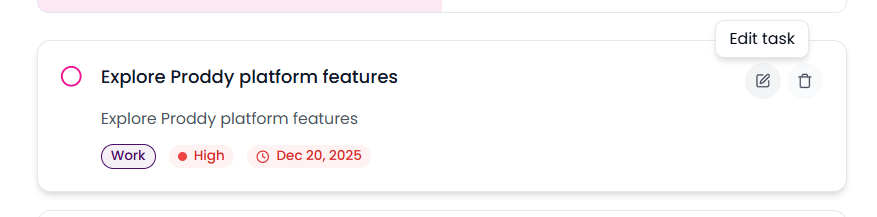
Edit a task
- Click on the task you want to update.
- Modify task details such as:
- Task title
- Priority
- Due date
- Category
- Changes are saved automatically and reflected in the task list.
Filter and Sort Tasks
Use the Filters panel on the right side of the Tasks page to quickly find and organize tasks.Filter Tasks
You can filter tasks using the following options:- Priority – Filter tasks by High, Medium, or Low priority
- Due Date – Show tasks that are Overdue, Due Today, Upcoming, or with No due date
- Categories – Narrow tasks by categories such as Work, Personal, Urgent, Learning, or Ideas
Sort Tasks
Organize tasks using sorting options:- Sort By – Sort tasks by Date Created, Due Date, or Priority
- Sort Direction – Choose between Ascending or Descending order
Notes
- Completed tasks can be reviewed anytime from the Completed tab.
- Filters help quickly find tasks based on urgency or deadlines.
- Sorting makes it easier to prioritize work.