Skip to main contentSending a Message in Chat
To send a message:
- Go to the general channel from the left sidebar.
- Ensure the Chat tab is selected in the top bar.
- Click on the message input field at the bottom where it says “Ask a question about your workspace…”.
- Type your message.
- Press Enter or click the Send button.
Your message will appear instantly in the chat.
Replying to a Message in a Thread
To reply to a message in a thread:
- Hover over the message you want to reply to.
- Click on the Reply or Thread option (if visible).
- Type your reply in the thread input box.
- Press Enter to send the reply.
Thread replies help keep conversations organised.
Mentioning a User in Chat
To mention a user:
- Click on the message input field.
- Type @ followed by the user’s name.
- Select the user from the list.
- Type your message and send it.
Mentioned users receive a notification.
Adding a Message to Tasks or Calendar
To convert a message into an action:
- Hover over the message you want to convert.
- Right-click on the message or click the message options menu.
- Select the option to:
- Add to Tasks, or
- Add to Calendar
- Confirm the action if prompted.
This links communication directly to execution.
Searching Messages in Chat
To search messages:
- Click on the Search bar at the top of the workspace.
- Enter keywords related to the message you’re looking for.
- Review the search results and click on a message to view it in context.
Pinning or Highlighting Important Messages
To highlight important messages (if available):
- Hover over the message you want to highlight.
- Click on the message options menu.
- Select Pin or equivalent option.
Pinned messages remain easily accessible.
Creating a Calendar Event from Chat
To add an event to the calendar from chat:
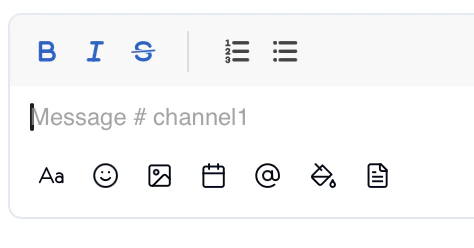
- Open a channel and navigate to the Chat tab.
- Click on the Calendar icon in the message input toolbar at the bottom.
- The Add Calendar Event dialog box will appear.
- Select a date using one of the available options:
- Today
- Tomorrow
- Next week
- Custom (to choose a specific date)
- (Optional) Set a time for the event.
- Review the event details.
- Click on Add to Calendar to confirm.

