Skip to main contentTo create a note:
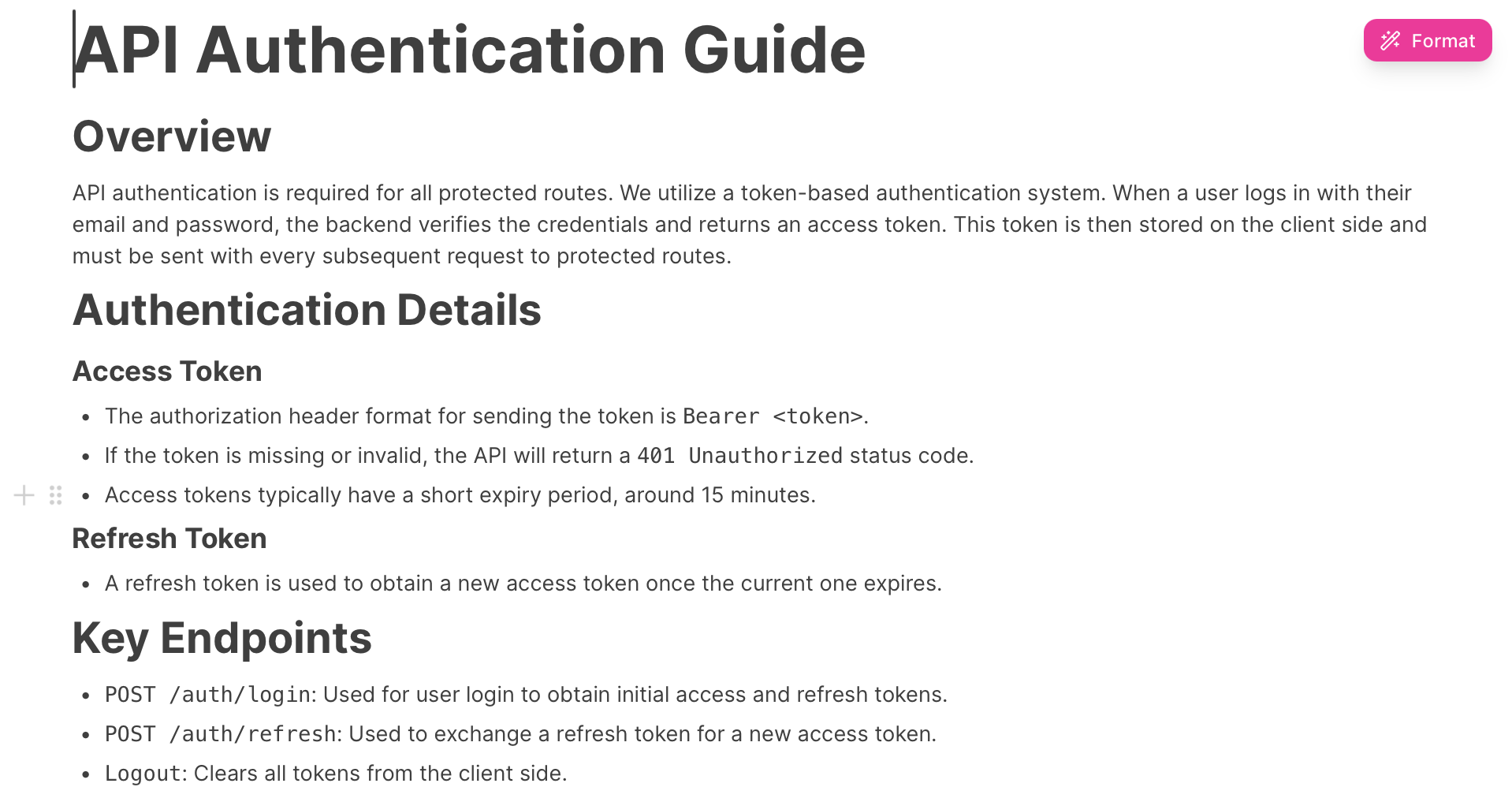
- Open the Dashboard by clicking on the Dashboard button on the top left corner.
- In the Workshop Overview, scroll down to the bottom.
- There you will see, Recent Notes
- Click on “Create note”
- Again then click on “Create note”
- Note will be created.
 Writing in a note:
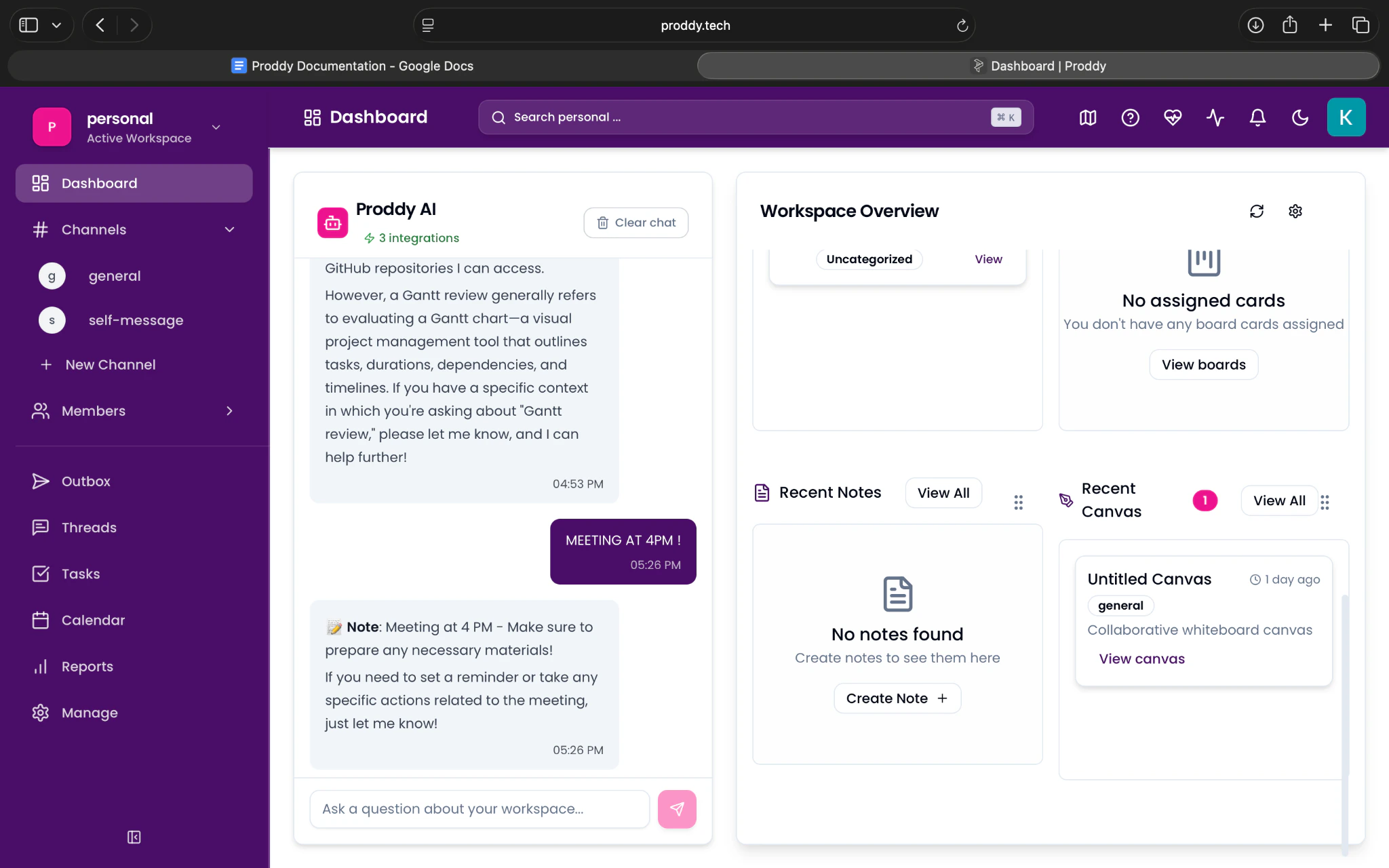
- To Open an existing note, go to the channels and go to general.
- Click on Notes in the top bar
- Click on the note you want to access in the bar on the left.
- It will open the note, Click on the white space where “Enter text or type ‘/’ for commands” is written and type the text accordingly.
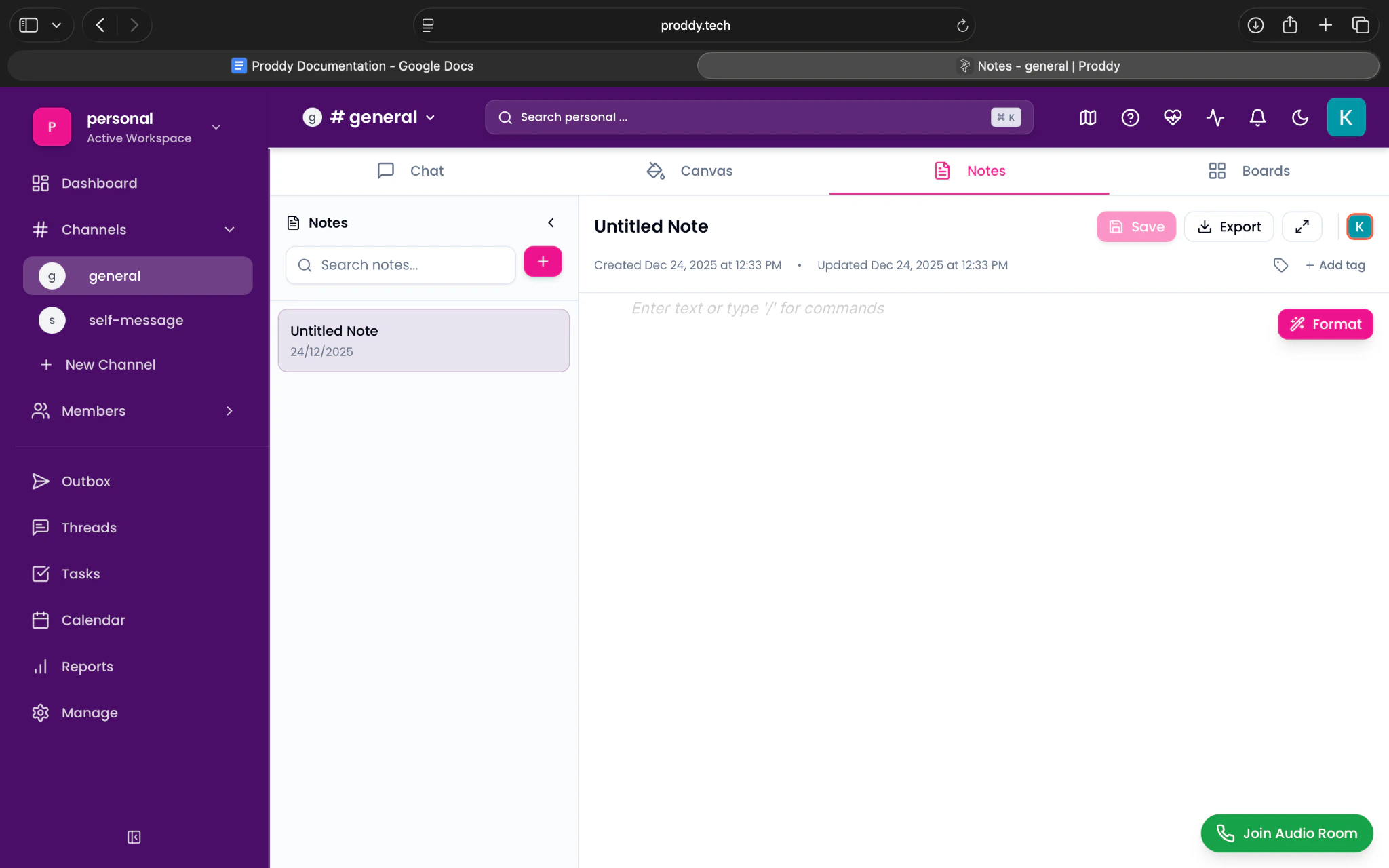
Renaming a Note:
- Go to the general channel, from the left most bar.
- Click on Notes in the top bar
- Hover your cursor on the note you want to rename.
- You will see 3 dots (…) , click on them
You will then see the option to Rename your note
Deleting a Note:
- Go to the general channel, from the left most bar.
- Click on Notes n the top bar
- Hover your cursor on the note you want to rename.
- You will see 3 dots (…) , click on them
- You will then see the option to Delete.
- Only delete after discussion with your team, this action is irreversible.
Formatting a Note
To format text inside a note:
-
Open the note by navigating to the general channel from the left sidebar.
-
Click on Notes in the top bar.
-
Select the note you want to format from the left panel.
-
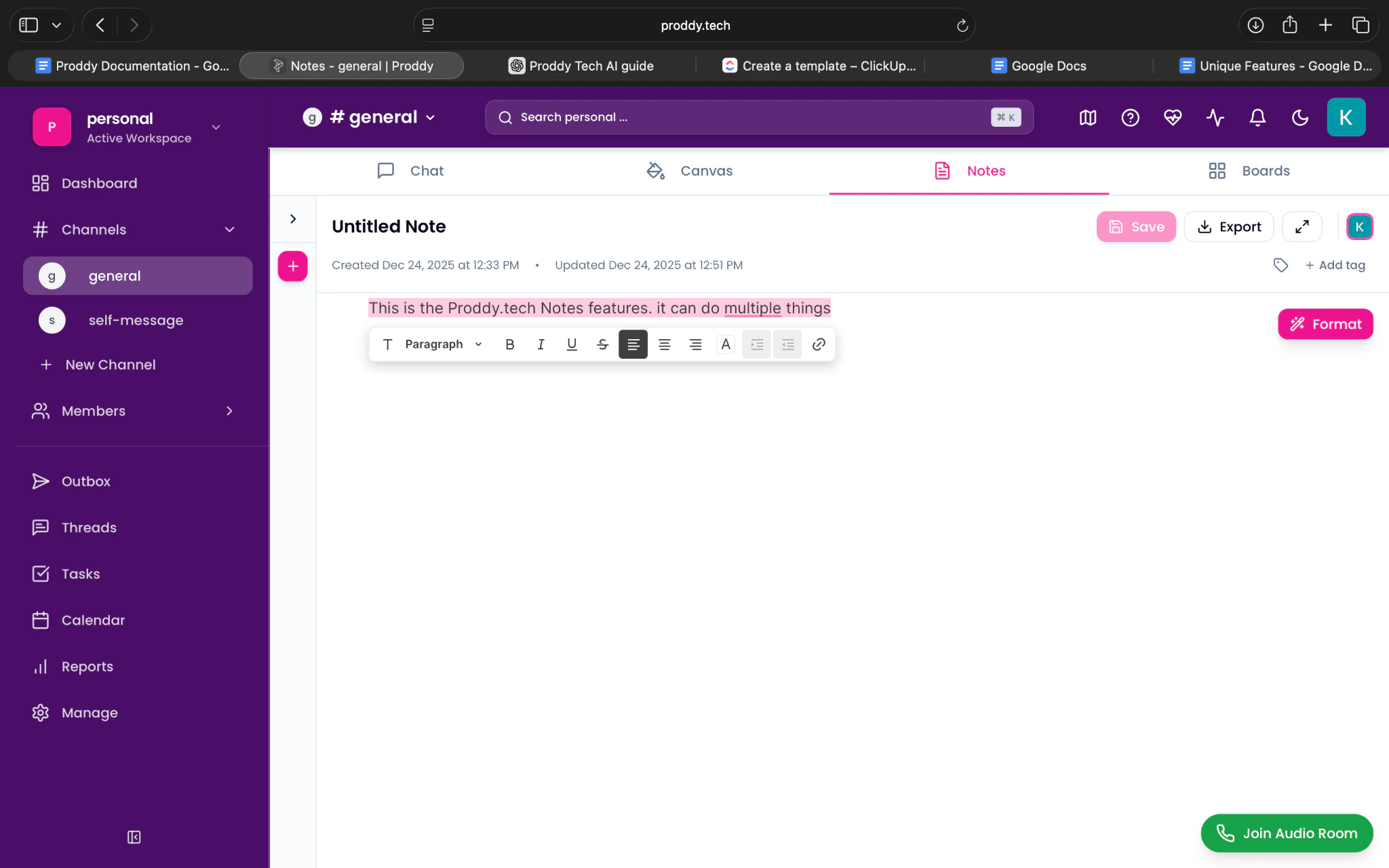
Click anywhere inside the note editor. 5. Use the formatting toolbar to:
-
Bold or italicise text
-
Create bullet points or numbered lists
-
Add headings for structure
-
You can also type “/” to view available formatting commands.
Searching for a Note
To search for an existing note:
- Go to the general channel from the left sidebar.
- Click on Notes in the top bar.
- Use the Search notes bar at the top of the notes panel.
- Type the name or keyword related to the note.
- Click on the note from the search results to open it.
Organising Notes
To keep notes organised:
- Navigate to Notes from the top bar.
- Rename notes clearly based on their purpose.
- Use separate notes for different topics or meetings.
- Regularly delete notes that are no longer required.
This helps keep the Notes section clean and easy to navigate.
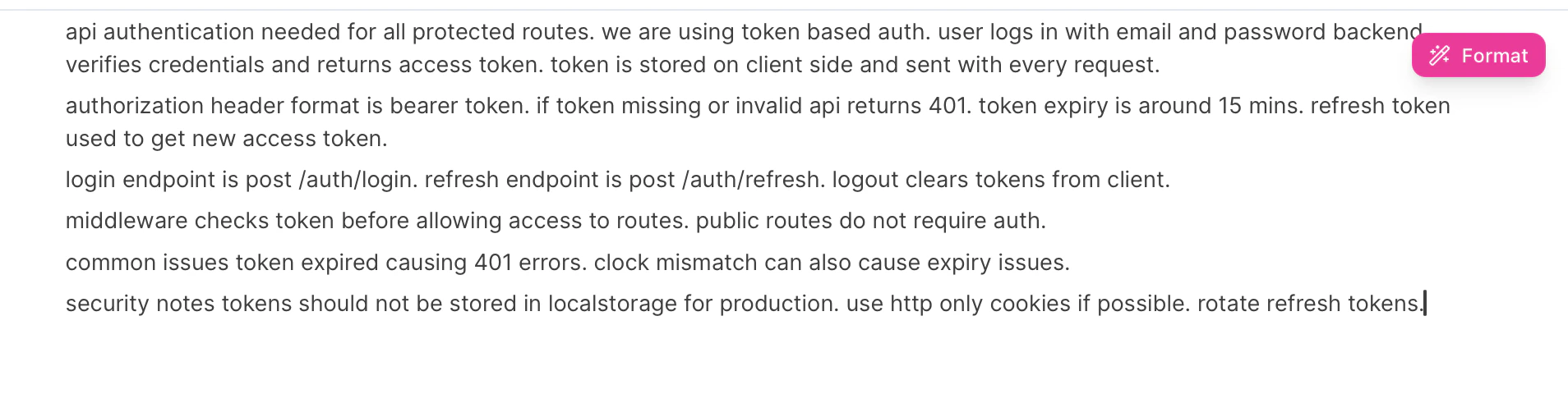
To format notes using AI:
- Open a note in the Notes tab.
- Enter or paste unformatted text into the note editor.
- Select the text you want to format (or keep all text selected).
- Click on the AI formatting option available in the notes toolbar.
- Confirm the action.
The AI will automatically format the content.
Before
 After
After