Open the Calendar
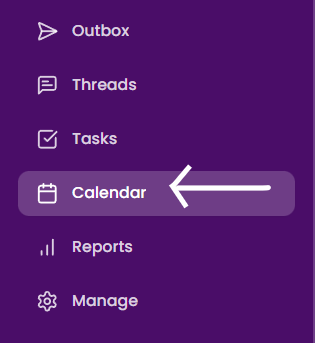
To open the Calendar:- Click Calendar from the left sidebar.
- The Calendar opens in monthly view by default.
- Use the left and right arrows at the top to navigate between months.
Calendar Overview
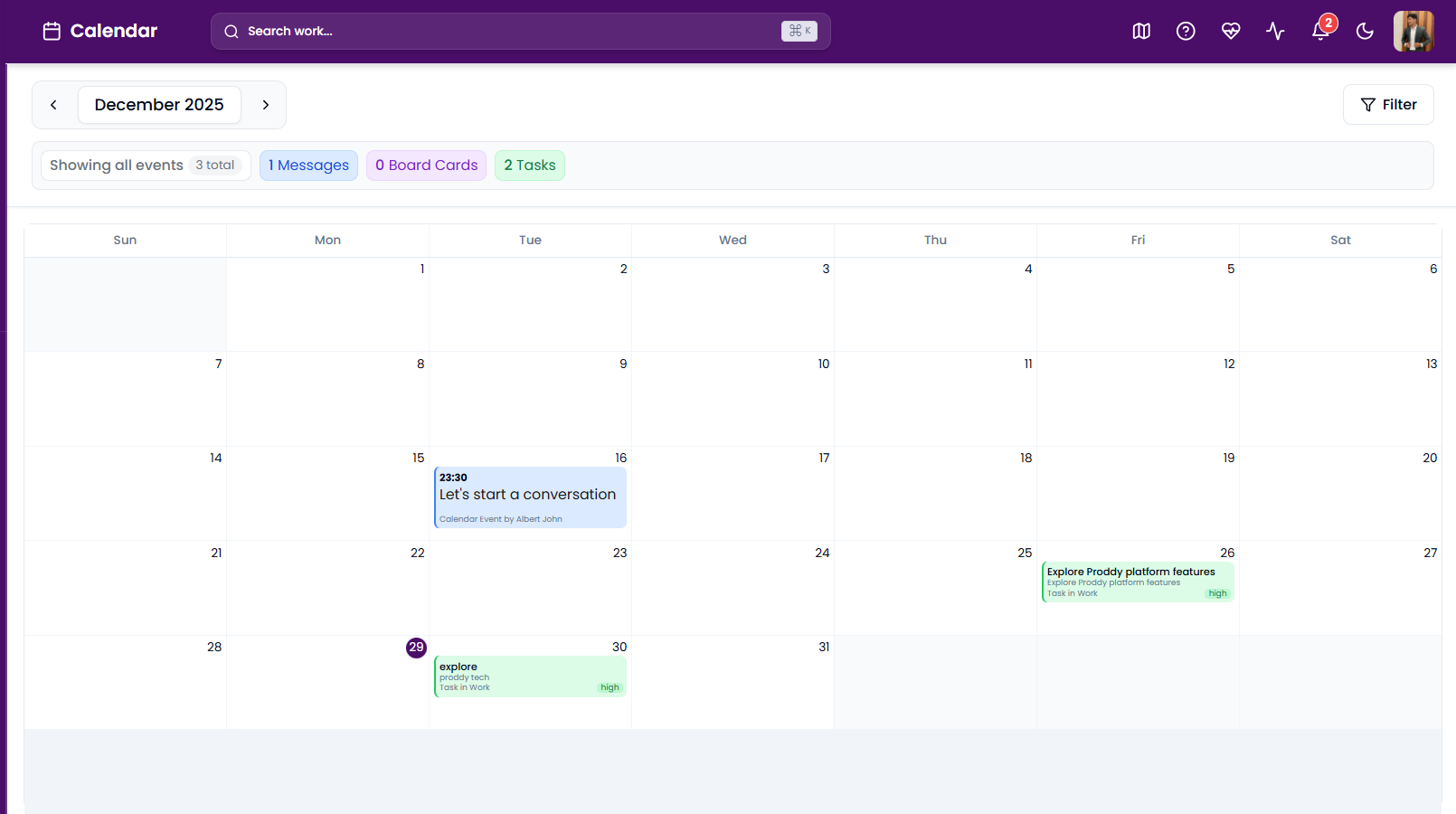
The Calendar displays all scheduled items for the selected month.At the top, users can see a summary of events currently visible:
- Showing all events
- Messages
- Board Cards
- Tasks
Calendar Item Types
Calendar events are color-coded for easy identification:- Blue – Messages
- Purple – Board Cards
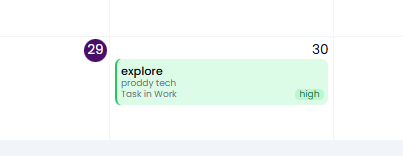
- Green – Tasks
View Tasks in Calendar
Tasks with due dates automatically appear on the Calendar. Each task shows:- Task title
- Category (for example: Work)
- Priority (Low, Medium, High)
View Messages in Calendar
Messages that are scheduled or created with a time appear as calendar events. This helps users:- Track important conversations
- See when discussions were initiated
- Plan follow-ups easily
Add Calendar Event from Chat
Proddy allows you to create calendar events directly from chat messages, making it easy to schedule conversations, reminders, or follow-ups without leaving the chat.Create a calendar event from chat
- Open any channel or direct chat.
- Type or select the message you want to schedule.
- Click the Calendar icon in the chat input toolbar.
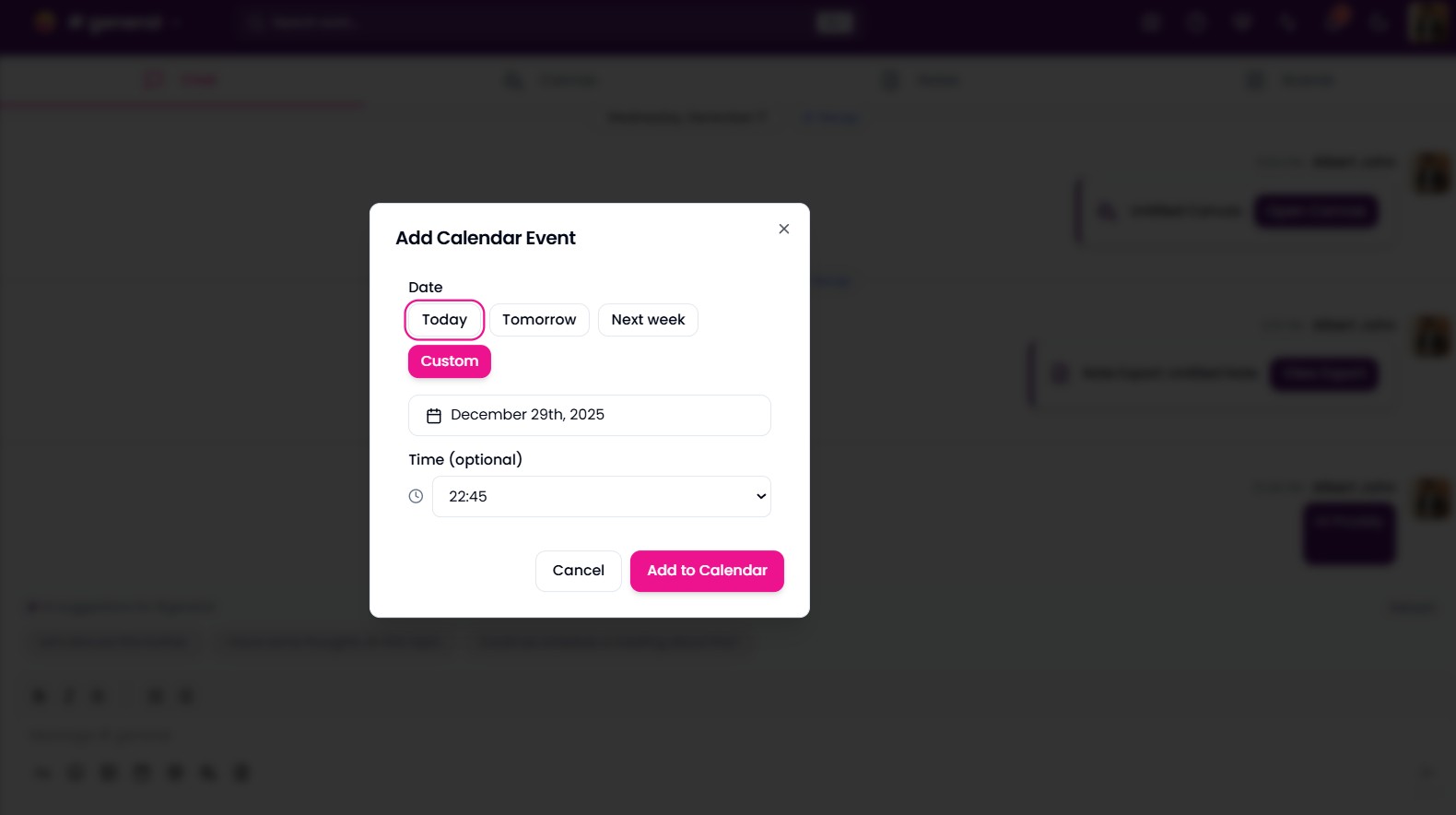
- The Add Calendar Event modal will open.
- Choose a date using quick options like:
- Today
- Tomorrow
- Next week
- Or select Custom to pick a specific date.
- (Optional) Set a time for the event.
- Click Add to Calendar.
Filter Calendar Events
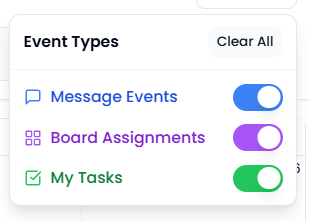
To filter calendar items:- Click the Filter button on the top-right.
- Select what you want to view:
- Messages
- Board Cards
- Tasks
- The Calendar updates instantly based on the selected filters.